Windows Internals
Windows Processes
Each process provides the resources needed to execute a program. A process has a virtual address space, executable code, open handles to system objects, a security context, a unique process identifier, environment variables, a priority class, minimum and maximum working set sizes, and at least one thread of execution.
Below are a few examples of default applications that start processes.
MsMpEng (Microsoft Defender)
wininit (keyboard and mouse)
lsass (credential storage)
Attackers can target processes to evade detections and hide malware as legitimate processes. Below is a small list of potential attack vectors attackers could employ against processes,
Processes have many components; they can be split into key characteristics that we can use to describe processes at a high level. The table below describes each critical component of processes and their purpose.
Process Component
Purpose
Private Virtual Address Space
Virtual memory addresses that the process is allocated.
Executable Program
Defines code and data stored in the virtual address space.
Open Handles
Defines handles to system resources accessible to the process.
Security Context
The access token defines the user, security groups, privileges, and other security information.
Process ID
Unique numerical identifier of the process.
Threads
Section of a process scheduled for execution.
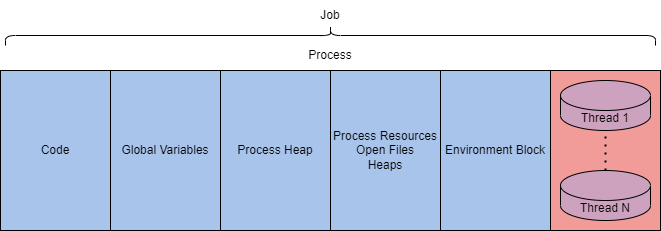
We can also explain a process at a lower level as it resides in the virtual address space. The table and diagram below depict what a process looks like in memory.
Component
Purpose
Code
Code to be executed by the process.
Global Variables
Stored variables.
Process Heap
Defines the heap where data is stored.
Process Resources
Defines further resources of the process.
Environment Block
Data structure to define process information.
This information is excellent to have when we get deeper into exploiting and abusing the underlying technologies, but they are still very abstract. We can make the process tangible by observing them in the Windows Task Manager. The task manager can report on many components and information about a process. Below is a table with a brief list of essential process details.
Value/Component
Purpose
Example
Name
Define the name of the process, typically inherited from the application
conhost.exe
PID
Unique numerical value to identify the process
7408
Status
Determines how the process is running (running, suspended, etc.)
Running
User name
User that initiated the process. Can denote privilege of the process
SYSTEM
These are what you would interact with the most as an end-user or manipulate as an attacker.
There are multiple utilities available that make observing processes easier; including Process Hacker 2, Process Explorer, and Procmon.
Processes are at the core of most internal Windows components. The following tasks will extend the information about processes and how they're used in Windows.
System
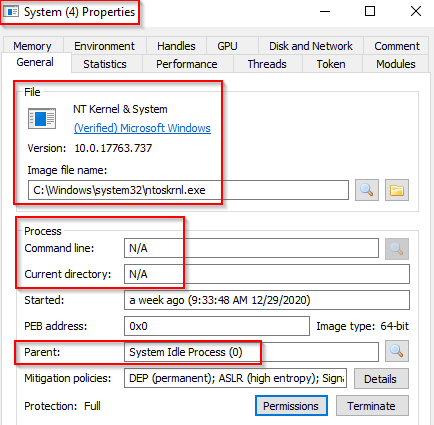
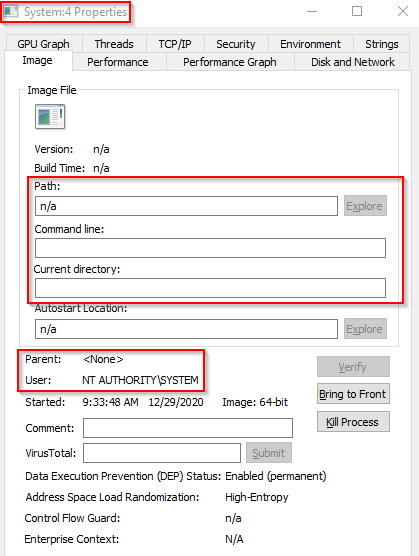
The first Windows process on the list is System. It was mentioned in a previous section that a PID for any given process is assigned at random, but that is not the case for the System process. The PID for System is always 4. What does this process do exactly? The official definition from Windows Internals 6th Edition: "The System process (process ID 4) is the home for a special kind of thread that runs only in kernel mode a kernel-mode system thread. System threads have all the attributes and contexts of regular user-mode threads (such as a hardware context, priority, and so on) but are different in that they run only in kernel-mode executing code loaded in system space, whether that is in Ntoskrnl.exe or in any other loaded device driver. In addition, system threads don't have a user process address space and hence must allocate any dynamic storage from operating system memory heaps, such as a paged or nonpaged pool." What is user mode? Kernel-mode? Visit the following link to understand each of these. Now, what is normal behaviour for this process? Let's use Process Explorer and view the properties of the System. Image Path: N/AParent Process: NoneNumber of Instances: OneUser Account: Local SystemStart Time: At boot time The information is slightly different if we view the System properties using Process Hacker. Image Path: C:\Windows\system32\ntoskrnl.exe (NT OS Kernel)Parent Process: System Idle Process (0) Technically this is correct. You may notice that Process Hacker confirms this is legit (Verified) Microsoft Windows. What is unusual behaviour for this process?
A parent process (aside from System Idle Process (0))
Multiple instances of System. (Should only be one instance)
A different PID. (Remember that the PID will always be PID 4)
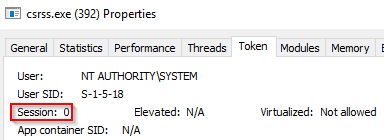
Not running in Session 0
System > smss.exe
The next process is smss.exe (Session Manager Subsystem). This process, also known as the Windows Session Manager, is responsible for creating new sessions. It is the first user-mode process started by the kernel. This process starts the kernel and user modes of the Windows subsystem (you can read more about the NT Architecture here). This subsystem includes win32k.sys (kernel mode), winsrv.dll (user mode), and csrss.exe (user mode). Smss.exe starts csrss.exe (Windows subsystem) and wininit.exe in Session 0, an isolated Windows session for the operating system, and csrss.exe and winlogon.exe for Session 1, which is the user session. The first child instance creates child instances in new sessions, done by smss.exe copying itself into the new session and self-terminating. You can read more about this process here. Session 0 (csrss.exe & wininit.exe)

Session 1 (csrss.exe & winlogon.exe)

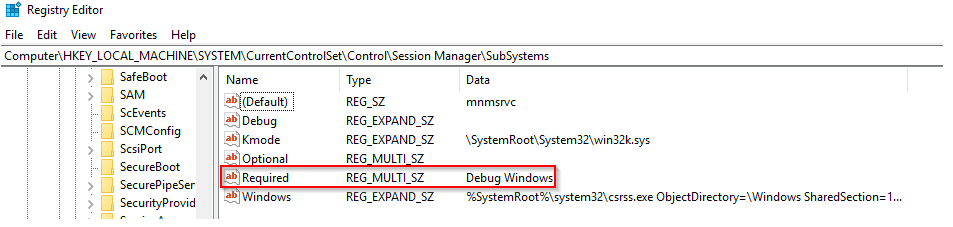
Any other subsystem listed in the Required value of HKLM\System\CurrentControlSet\Control\Session Manager\Subsystems is also launched.
SMSS is also responsible for creating environment variables, virtual memory paging files and starts winlogon.exe (the Windows Logon Manager).
What is normal?
Image Path: %SystemRoot%\System32\smss.exeParent Process: SystemNumber of Instances: One master instance and child instance per session. The child instance exits after creating the session.User Account: Local SystemStart Time: Within seconds of boot time for the master instance
What is unusual?
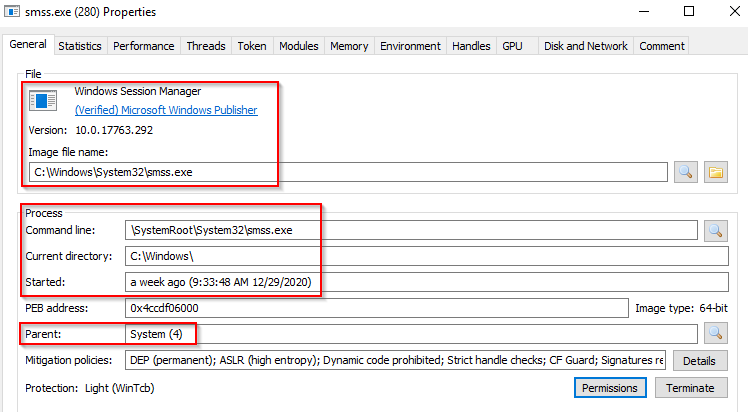
A different parent process other than System (4)
The image path is different from C:\Windows\System32
More than one running process. (children self-terminate and exit after each new session)
The running User is not the SYSTEM user
Unexpected registry entries for Subsystem
csrss.exe
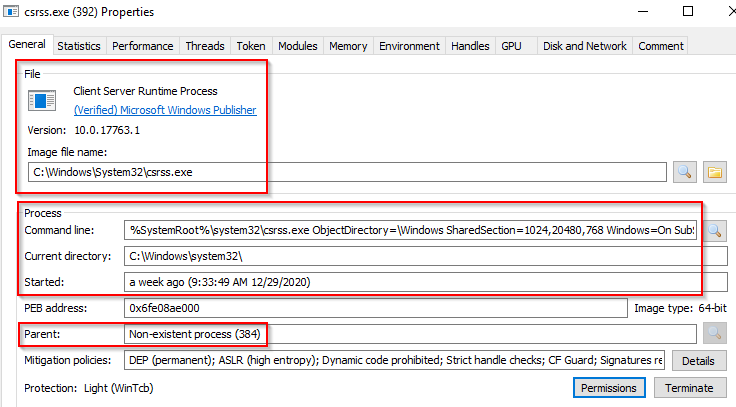
As mentioned in the previous section, csrss.exe (Client Server Runtime Process) is the user-mode side of the Windows subsystem. This process is always running and is critical to system operation. If this process is terminated by chance, it will result in system failure. This process is responsible for the Win32 console window and process thread creation and deletion. For each instance, csrsrv.dll, basesrv.dll, and winsrv.dll are loaded (along with others). This process is also responsible for making the Windows API available to other processes, mapping drive letters, and handling the Windows shutdown process. You can read more about this process here. Note: Recall that csrss.exe and winlogon.exe are called from smss.exe at startup for Session 1. What is normal? Notice what is shown for the parent process for these two processes. Remember, these processes are spawned by smss.exe, which self-terminates itself.
Image Path: %SystemRoot%\System32\csrss.exe
Parent Process: Created by an instance of smss.exe
Number of Instances: Two or more
User Account: Local System
Start Time: Within seconds of boot time for the first two instances (for Session 0 and 1). Start times for additional instances occur as new sessions are created, although only Sessions 0 and 1 are often created.
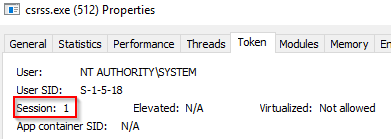
Session 0 (PID 392)
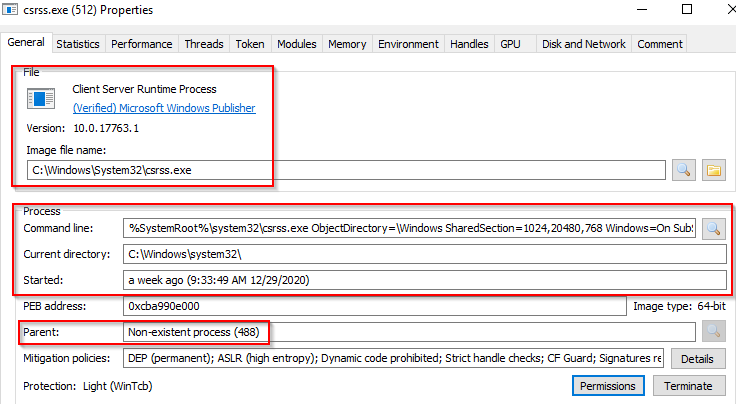
Session 1 (PID 512)
What is unusual?
An actual parent process. (smss.exe calls this process and self-terminates)
Image file path other than C:\Windows\System32
Subtle misspellings to hide rogue processes masquerading as csrss.exe in plain sight
The user is not the SYSTEM user.
wininit.exe
The Windows Initialization Process, wininit.exe, is responsible for launching services.exe (Service Control Manager), lsass.exe (Local Security Authority), and lsaiso.exe within Session 0. It is another critical Windows process that runs in the background, along with its child processes.

Note: lsaiso.exe is a process associated with Credential Guard and KeyGuard. You will only see this process if Credential Guard is enabled.
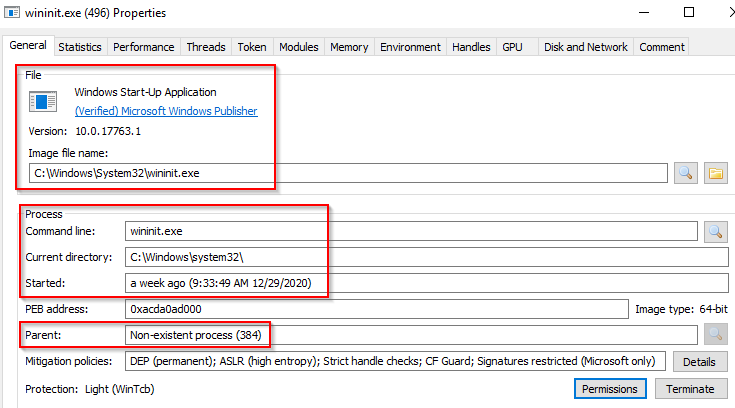
What is normal? Image Path: %SystemRoot%\System32\wininit.exe
Parent Process: Created by an instance of smss.exe
Number of Instances: One
User Account: Local System
Start Time: Within seconds of boot time
What is unusual?
An actual parent process. (smss.exe calls this process and self-terminates)
Image file path other than C:\Windows\System32
Subtle misspellings to hide rogue processes in plain sight
Multiple running instances
Not running as SYSTEM
wininit.exe > services.exe
The next process is the Service Control Manager (SCM) or services.exe. Its primary responsibility is to handle system services: loading services, interacting with services and starting or ending services. It maintains a database that can be queried using a Windows built-in utility, sc.exe.
cmd.exe
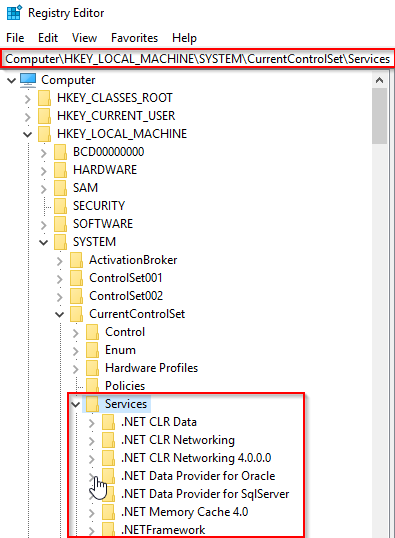
Information regarding services is stored in the registry, HKLM\System\CurrentControlSet\Services.
This process also loads device drivers marked as auto-start into memory.
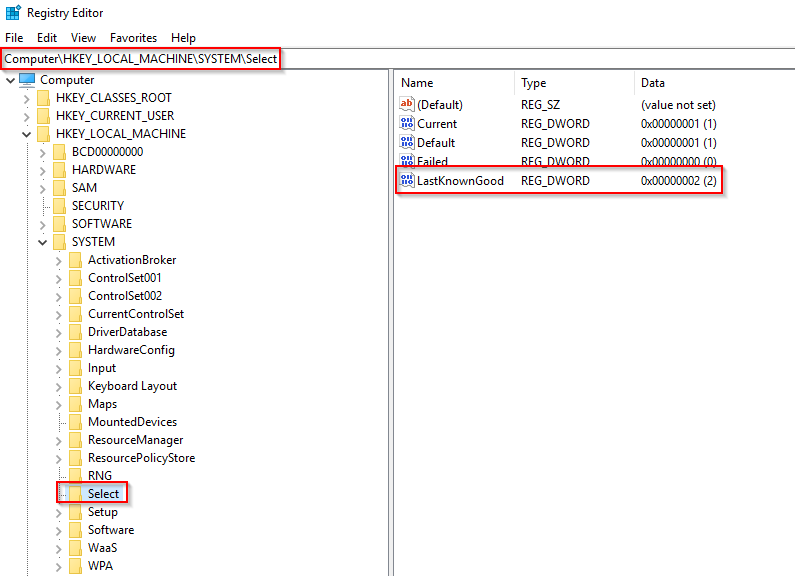
When a user logs into a machine successfully, this process is responsible for setting the value of the Last Known Good control set (Last Known Good Configuration), HKLM\System\Select\LastKnownGood, to that of the CurrentControlSet.
This process is the parent to several other key processes: svchost.exe, spoolsv.exe, msmpeng.exe, and dllhost.exe, to name a few. You can read more about this process here.

What is normal? Image Path: %SystemRoot%\System32\services.exeParent Process: wininit.exeNumber of Instances: OneUser Account: Local SystemStart Time: Within seconds of boot time What is unusual?
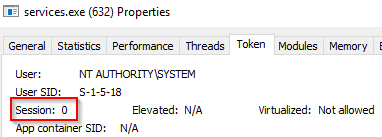
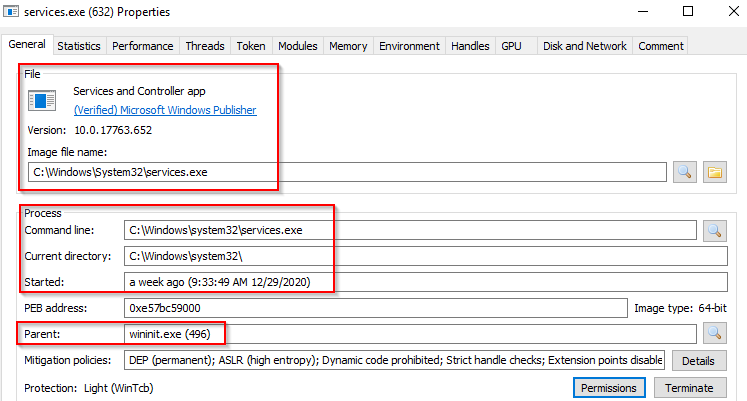
A parent process other than wininit.exe
Image file path other than C:\Windows\System32
Subtle misspellings to hide rogue processes in plain sight
Multiple running instances
Not running as SYSTEM
wininit.exe > services.exe > svchost.exe
The Service Host (Host Process for Windows Services), or svchost.exe, is responsible for hosting and managing Windows services.

The services running in this process are implemented as DLLs. The DLL to implement is stored in the registry for the service under the Parameters subkey in ServiceDLL. The full path is HKLM\SYSTEM\CurrentControlSet\Services\SERVICE NAME\Parameters.
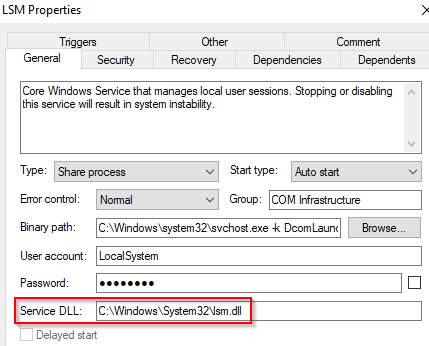
The example below is the ServiceDLL value for the Dcomlaunch service.

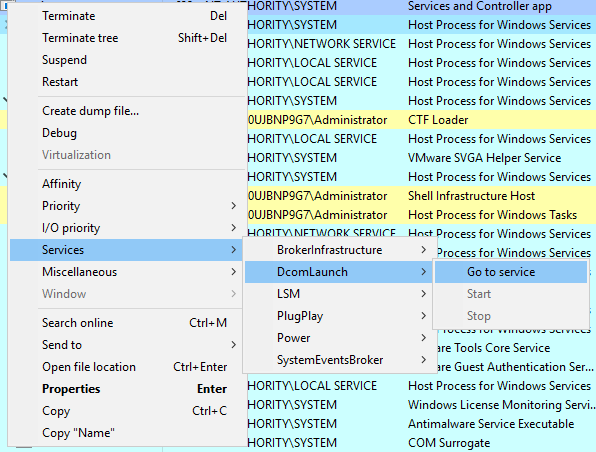
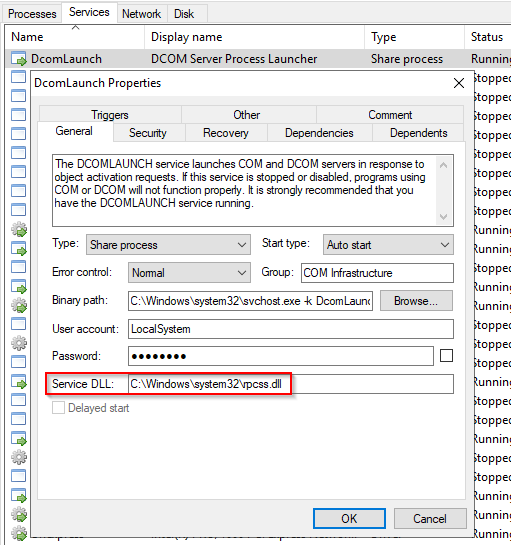
To view this information from within Process Hacker, right-click the svchost.exe process. In this case, it will be PID 748. Right-click the service and select Properties. Look at Service DLL. From the above screenshot, the Binary Path is listed.

Also, notice how it is structured. There is a key identifier in the binary path, and that identifier is -k . This is how a legitimate svchost.exe process is called.
The -k parameter is for grouping similar services to share the same process. This concept was based on the OS design and implemented to reduce resource consumption. Starting from Windows 10 Version 1703, services grouped into host processes changed. On machines running more than 3.5 GB of memory, each service will run its own process. You can read more about this process here.
Back to the key identifier (-k) from the binary path, in the above screen, the -k value is Dcomlaunch. Other services are running with the same binary path in the virtual machine attached to this room.
Each will have a different value for ServiceDLL. Let's take LSM as an example and inspect the value for ServiceDLL.
Since svchost.exe will always have multiple running processes on any Windows system, this process has been a target for malicious use. Adversaries create malware to masquerade as this process and try to hide amongst the legitimate svchost.exe processes. They can name the malware svchost.exe or misspell it slightly, such as scvhost.exe. By doing so, the intention is to go under the radar. Another tactic is to install/call a malicious service (DLL).
Extra reading - Hexacorn Blog

What is normal? Image Path: %SystemRoot%\System32\svchost.exe
Parent Process: services.exe
Number of Instances: Many
User Account: Varies (SYSTEM, Network Service, Local Service) depending on the svchost.exe instance. In Windows 10, some instances run as the logged-in user.Start Time: Typically within seconds of boot time. Other instances of svchost.exe can be started after boot.
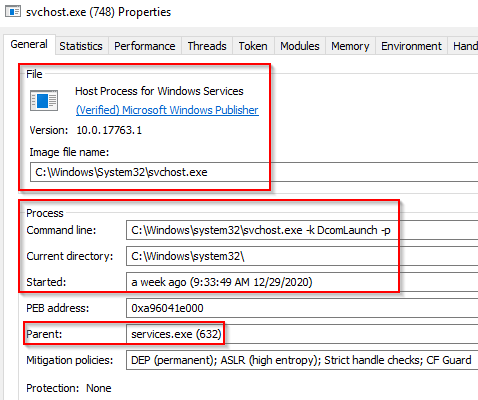
What is unusual?
A parent process other than services.exe
Image file path other than C:\Windows\System32
Subtle misspellings to hide rogue processes in plain sight
The absence of the -k parameter
Lsass
Per Wikipedia, "Local Security Authority Subsystem Service (LSASS) is a process in Microsoft Windows operating systems that is responsible for enforcing the security policy on the system. It verifies users logging on to a Windows computer or server, handles password changes, and creates access tokens. It also writes to the Windows Security Log."
It creates security tokens for SAM (Security Account Manager), AD (Active Directory), and NETLOGON. It uses authentication packages specified in HKLM\System\CurrentControlSet\Control\Lsa.
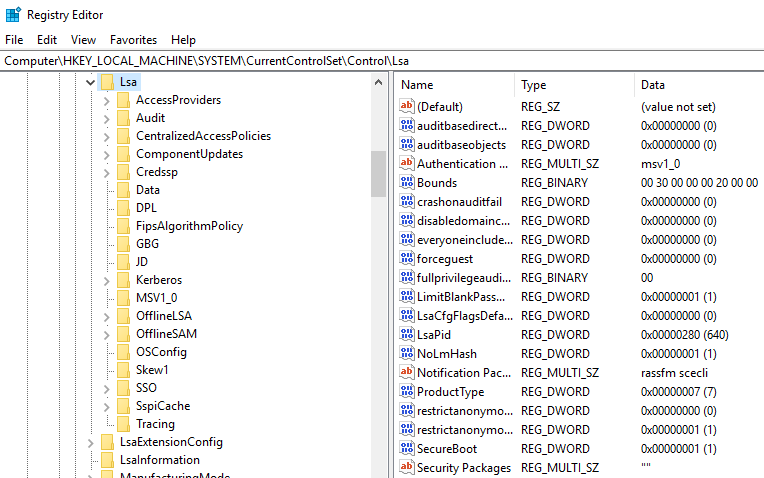
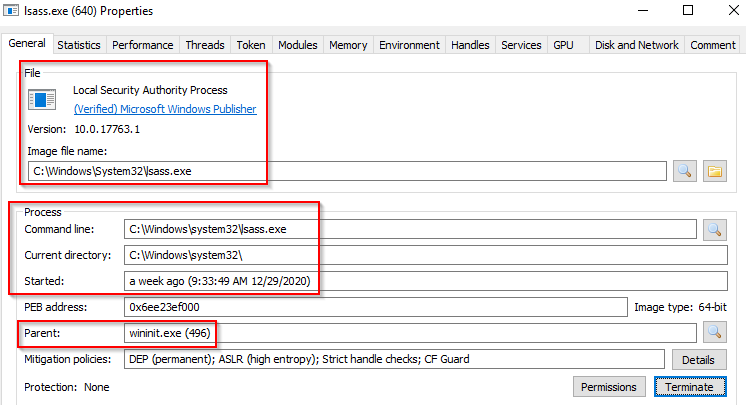
Lsass.exe is another process adversaries target. Common tools such as mimikatz are used to dump credentials, or adversaries mimic this process to hide in plain sight. Again, they do this by either naming their malware by this process name or simply misspelling the malware slightly. Extra reading: How LSASS is maliciously used and additional features that Microsoft has put into place to prevent these attacks.
What is normal? Image Path: %SystemRoot%\System32\lsass.exe
Parent Process: wininit.exe
Number of Instances: One
User Account: Local System
Start Time: Within seconds of boot time
What is unusual?
A parent process other than wininit.exe
Image file path other than C:\Windows\System32
Subtle misspellings to hide rogue processes in plain sight
Multiple running instances
Not running as SYSTEM
winlogon.exe
The Windows Logon, winlogon.exe, is responsible for handling the Secure Attention Sequence (SAS). It is the ALT+CTRL+DELETE key combination users press to enter their username & password. This process is also responsible for loading the user profile. It loads the user's NTUSER.DAT into HKCU, and userinit.exe loads the user's shell. Read more about this process here.
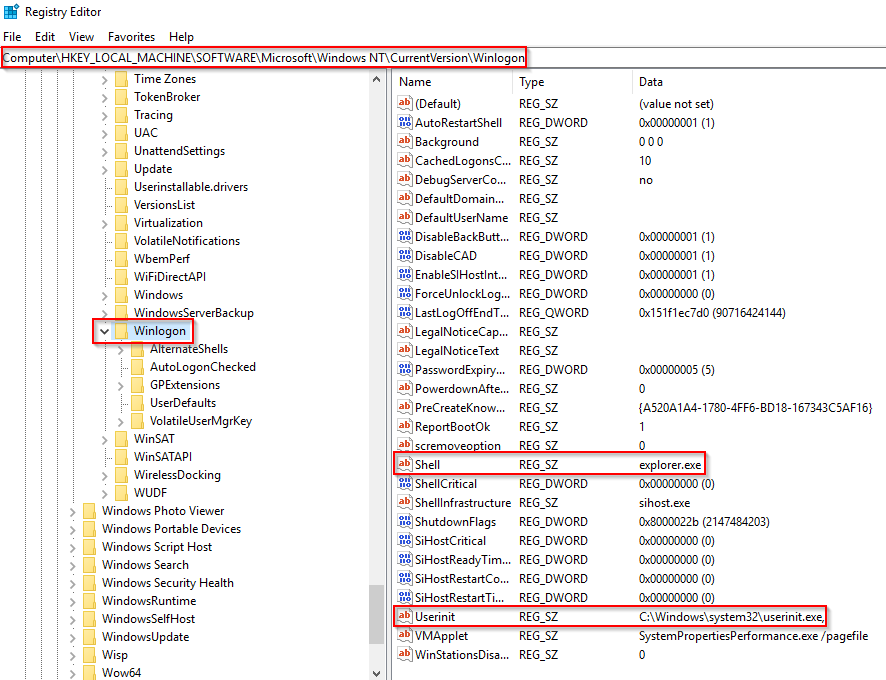
It is also responsible for locking the screen and running the user's screensaver, among other functions. You can read more about this process here. Remember from earlier sections, smss.exe launches this process along with a copy of csrss.exe within Session 1.

What is normal?
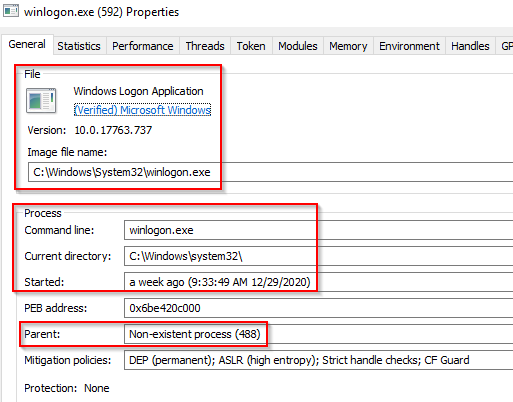
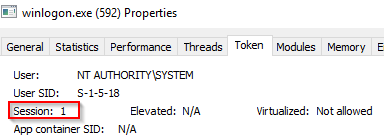
Image Path: %SystemRoot%\System32\winlogon.exe
Parent Process: Created by an instance of smss.exe that exits, so analysis tools usually do not provide the parent process name.
Number of Instances: One or more
User Account: Local System
Start Time: Within seconds of boot time for the first instance (for Session 1). Additional instances occur as new sessions are created, typically through Remote Desktop or Fast User Switching logons.
What is unusual?
An actual parent process. (smss.exe calls this process and self-terminates)
Image file path other than C:\Windows\System32
Subtle misspellings to hide rogue processes in plain sight
Not running as SYSTEM
Shell value in the registry other than explorer.exe
Explorer.exe
The last process we'll look at is Windows Explorer, explorer.exe. This process gives the user access to their folders and files. It also provides functionality for other features, such as the Start Menu and Taskbar.
As mentioned previously, the Winlogon process runs userinit.exe, which launches the value in HKLM\Software\Microsoft\Windows NT\CurrentVersion\Winlogon\Shell. Userinit.exe exits after spawning explorer.exe. Because of this, the parent process is non-existent.
There will be many child processes for explorer.exe.

What is normal?
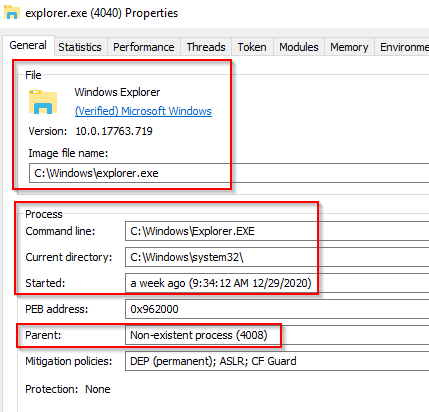
Image Path: %SystemRoot%\explorer.exe
Parent Process: Created by userinit.exe and exits
Number of Instances: One or more per interactively logged-in user
User Account: Logged-in user(s)
Start Time: First instance when the first interactive user logon session begins
What is unusual?
An actual parent process. (userinit.exe calls this process and exits)
Image file path other than C:\Windows
Running as an unknown user
Subtle misspellings to hide rogue processes in plain sight
Outbound TCP/IP connections
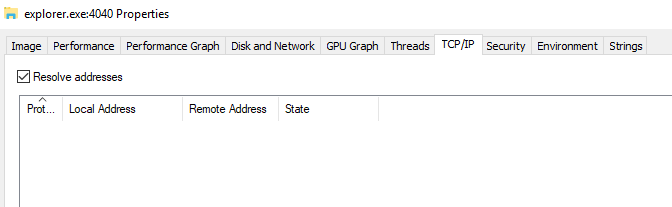
Note: The above image is the explorer.exe properties view from Process Explorer.
Threads
A thread is an executable unit employed by a process and scheduled based on device factors.
Device factors can vary based on CPU and memory specifications, priority and logical factors, and others.
We can simplify the definition of a thread: "controlling the execution of a process."
Since threads control execution, this is a commonly targeted component. Thread abuse can be used on its own to aid in code execution, or it is more widely used to chain with other API calls as part of other techniques.
Threads share the same details and resources as their parent process, such as code, global variables, etc. Threads also have their unique values and data, outlined in the table below.
Stack
All data relevant and specific to the thread (exceptions, procedure calls, etc.)
Thread Local Storage
Pointers for allocating storage to a unique data environment
Stack Argument
Unique value assigned to each thread
Context Structure
Holds machine register values maintained by the kernel
Threads may seem like bare-bones and simple components, but their function is critical to processes.
Virtual Memory
Virtual memory is a critical component of how Windows internals work and interact with each other. Virtual memory allows other internal components to interact with memory as if it was physical memory without the risk of collisions between applications. The concept of modes and collisions is explained further in task 8.
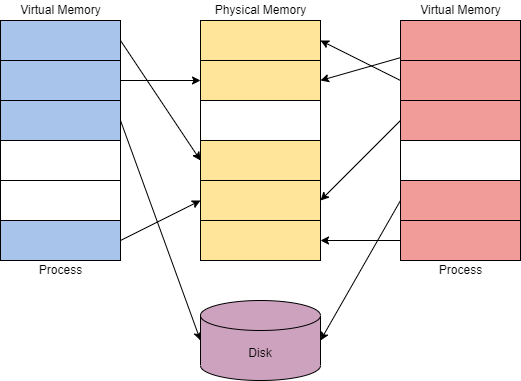
Virtual memory provides each process with a private virtual address space. A memory manager is used to translate virtual addresses to physical addresses. By having a private virtual address space and not directly writing to physical memory, processes have less risk of causing damage.
The memory manager will also use pages or transfers to handle memory. Applications may use more virtual memory than physical memory allocated; the memory manager will transfer or page virtual memory to the disk to solve this problem. You can visualize this concept in the diagram below.
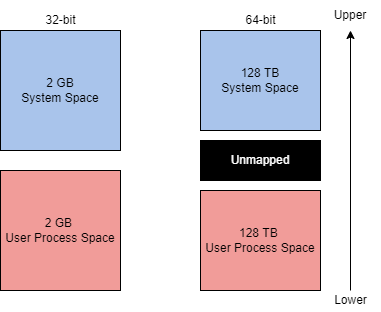
The theoretical maximum virtual address space is 4 GB on a 32-bit x86 system.
This address space is split in half, the lower half (0x00000000 - 0x7FFFFFFF) is allocated to processes as mentioned above. The upper half (0x80000000 - 0xFFFFFFFF) is allocated to OS memory utilization. Administrators can alter this allocation layout for applications that require a larger address space through settings (increaseUserVA) or the AWE (Address Windowing Extensions).
The theoretical maximum virtual address space is 256 TB on a 64-bit modern system.
The exact address layout ratio from the 32-bit system is allocated to the 64-bit system.
Most issues that require settings or AWE are resolved with the increased theoretical maximum.
You can visualize both of the address space allocation layouts to the right.
Although this concept does not directly translate to Windows internals or concepts, it is crucial to understand. If understood correctly, it can be leveraged to aid in abusing Windows internals.
Dynamic Link Libraries
The Microsoft docs describe a DLL as "a library that contains code and data that can be used by more than one program at the same time."
DLLs are used as one of the core functionalities behind application execution in Windows. From the Windows documentation, "The use of DLLs helps promote modularization of code, code reuse, efficient memory usage, and reduced disk space. So, the operating system and the programs load faster, run faster, and take less disk space on the computer."
When a DLL is loaded as a function in a program, the DLL is assigned as a dependency. Since a program is dependent on a DLL, attackers can target the DLLs rather than the applications to control some aspect of execution or functionality.
DLLs are created no different than any other project/application; they only require slight syntax modification to work. Below is an example of a DLL from the Visual C++ Win32 Dynamic-Link Library project.
Below is the header file for the DLL; it will define what functions are imported and exported. We will discuss the header file's importance (or lack of) in the next section of this task.
The DLL has been created, but that still leaves the question of how are they used in an application?
DLLs can be loaded in a program using load-time dynamic linking or run-time dynamic linking.
When loaded using load-time dynamic linking, explicit calls to the DLL functions are made from the application. You can only achieve this type of linking by providing a header (.h) and import library (.lib) file. Below is an example of calling an exported DLL function from an application.
When loaded using run-time dynamic linking, a separate function (LoadLibrary or LoadLibraryEx) is used to load the DLL at run time. Once loaded, you need to use GetProcAddress to identify the exported DLL function to call. Below is an example of loading and importing a DLL function in an application.
In malicious code, threat actors will often use run-time dynamic linking more than load-time dynamic linking. This is because a malicious program may need to transfer files between memory regions, and transferring a single DLL is more manageable than importing using other file requirements.
Interacting with Windows Internals
Interacting with Windows internals may seem daunting, but it has been dramatically simplified. The most accessible and researched option to interact with Windows Internals is to interface through Windows API calls. The Windows API provides native functionality to interact with the Windows operating system. The API contains the Win32 API and, less commonly, the Win64 API. Check out the Windows API room for more information about the Windows API.

Most Windows internals components require interacting with physical hardware and memory.
The Windows kernel will control all programs and processes and bridge all software and hardware interactions. This is especially important since many Windows internals require interaction with memory in some form.
An application by default normally cannot interact with the kernel or modify physical hardware and requires an interface. This problem is solved through the use of processor modes and access levels.
A Windows processor has a user and kernel mode. The processor will switch between these modes depending on access and requested mode.
The switch between user mode and kernel mode is often facilitated by system and API calls. In documentation, this point is sometimes referred to as the "Switching Point."
No direct hardware access
Direct hardware access
Creates a process in a private virtual address space
Ran in a single shared virtual address space
Access to "owned memory locations"
Access to entire physical memory
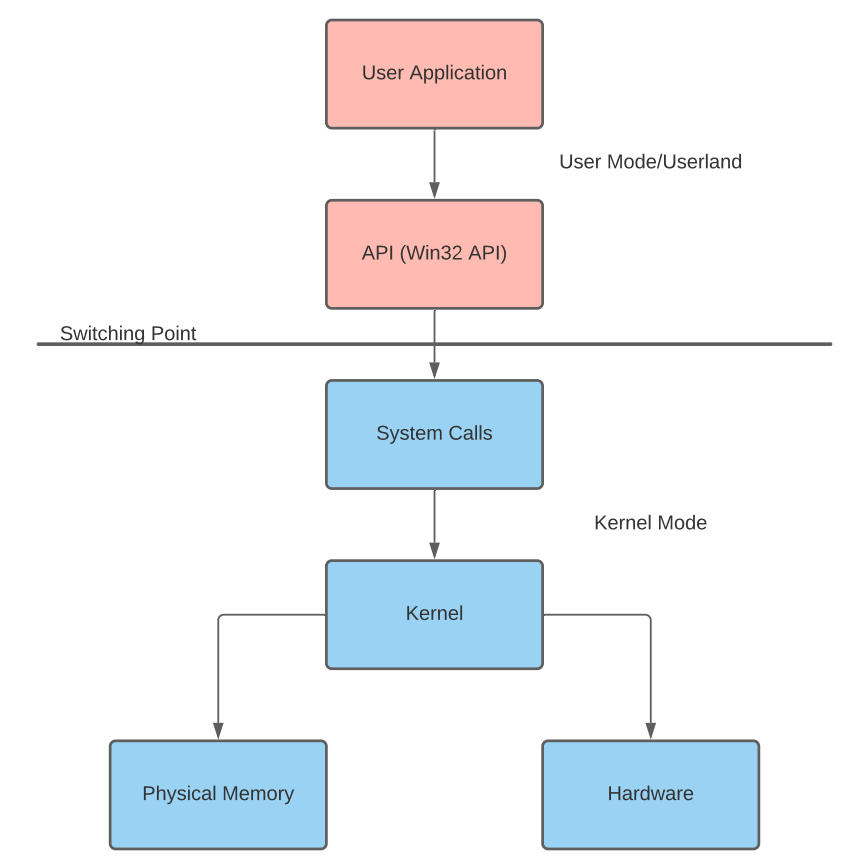
Applications started in user mode or "userland" will stay in that mode until a system call is made or interfaced through an API. When a system call is made, the application will switch modes. Pictured right is a flow chart describing this process.
When looking at how languages interact with the Win32 API, this process can become further warped; the application will go through the language runtime before going through the API. The most common example is C# executing through the CLR before interacting with the Win32 API and making system calls.
We will inject a message box into our local process to demonstrate a proof-of-concept to interact with memory.
The steps to write a message box to memory are outlined below,
Allocate local process memory for the message box.
Write/copy the message box to allocated memory.
Execute the message box from local process memory.
At step one, we can use OpenProcess to obtain the handle of the specified process.
At step two, we can use VirtualAllocEx to allocate a region of memory with the payload buffer.
At step three, we can use WriteProcessMemory to write the payload to the allocated region of memory.
At step four, we can use CreateRemoteThread to execute our payload from memory.
Last updated