Windows Event Logs
Windows Security Logs
The most commonly viewed and referenced logs are the Security logs, but why is that the case? Let’s break down why these logs are so important and what makes them essential for investigation. Analysts can detect in Security logs activities such as user authentication attempts, account creation or modification, access to files and registry keys, process execution, system restarts or log clearing, and changes to audit or security policies.
Windows System Logs
These logs record events generated by the operating system and its core services. They help detect various events related to services, system-level activity, and potential errors. These logs are an excellent place to look for potential persistence or privilege escalation attempts via services. Let’s examine the activity on our compromised host WINHOST05 and try to identify anomalies. We will use two event codes, 7045 and 7036, which indicate service creation and service start/stop events.
index=winenv EventCode=7045 OR EventCode=7036 ComputerName=WINHOST05 | table _time EventCode ComputerName Service_Name Service_Account Service_File_Name Message
From the search results, we can see that on the host, a service named "User Updates" was created and started, which launches the malicious RNSfnsjdf.exe file from the Temp directory under the SYSTEM account. This is most likely a privilege escalation attempt, as we recall that the attacker previously only had access to the ted-admin account.

Anatomy of a Log Entry
Windows is an interesting OS as it has very powerful logging capabilities but requires a lot of knowledge to read and understand the logs. Your first challenge may be to just open the logs, as they are stored in a binary format inside the C:\Windows\System32\winevt\Logs folder:
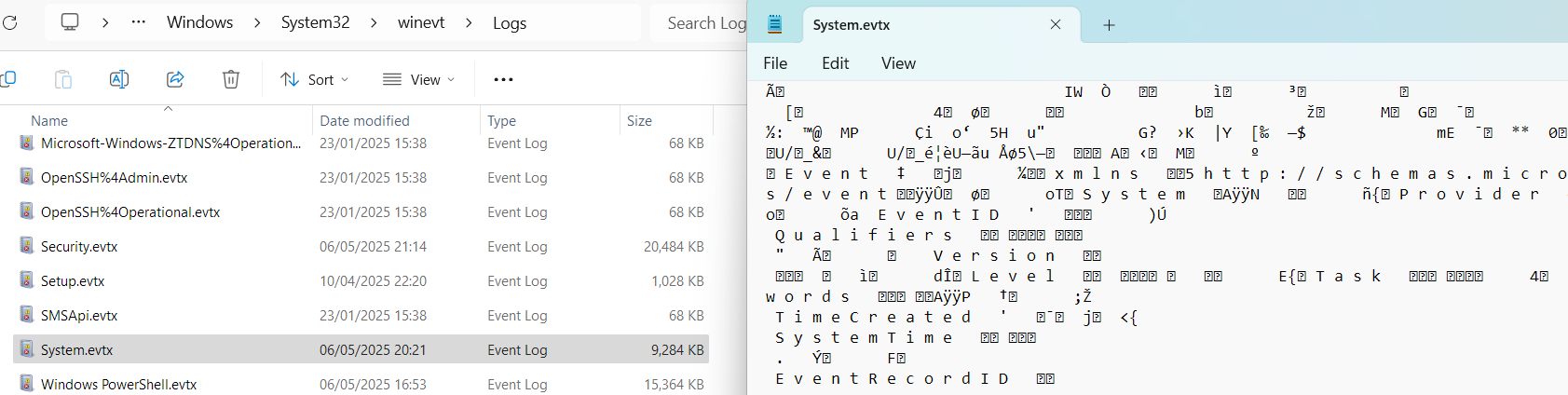
Every EVTX file corresponds to a specific log category. For example, Application Logs contain events logged by user-mode applications like the IIS web server or MS SQL database, and Security Logs capture events like logon attempts, process activity, and user management.
Reading Event Logs
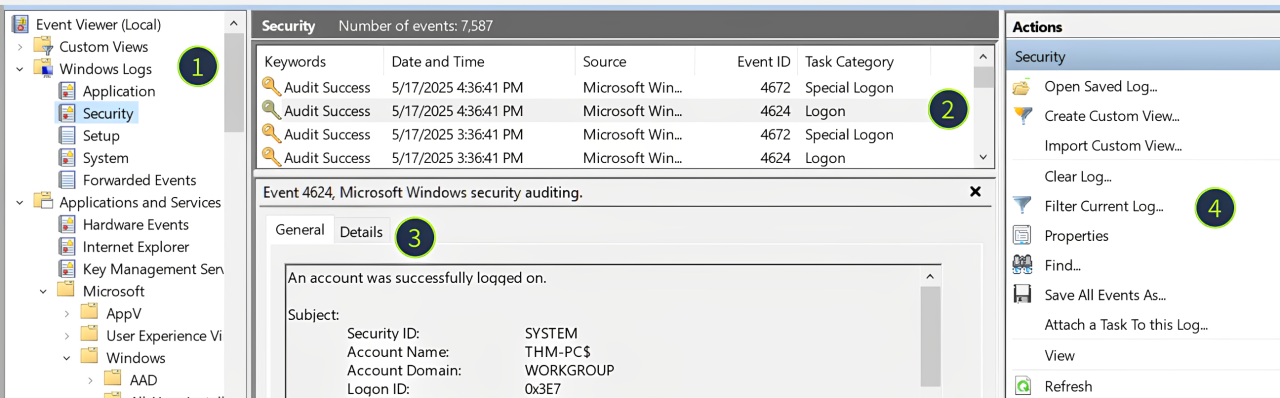
We will use Event Viewer for this room, a built-in tool that allows you to view and manage event logs. To open Event Viewer, search for "Event Viewer" using Windows Search or press Win + R, type eventvwr, and press Enter. Once the tool is loaded, you may see all system logs parsed, grouped, and ready for analysis:
Log Sources: Every EVTX file corresponds to a single item on the left panel
Log List: Each row you see is a single event that contains a few properties you can sort by:
Keywords: For some events, indicates if the action was successful or not
Date and Time: The timestamp when the event occurred (system time, not UTC!)
Event ID: A unique number for the event name (e.g. a failed login is always 4625)
Log Details: The actual content of the log, in a plaintext or XML format ("Details" tab)
Filters Menu: Use the "Filter Current Log" and "Find" buttons to filter the logs
What Is Logged
There are over 500 event IDs just for the Security logs and many thousands of various event IDs in total! Still, not all events are logged by default and not all events are properly documented, so in this room we will explore the most helpful logs for daily SOC routines.
Event ID
Purpose
Logging
Limitations
4624 (Successful Logon)
Detect suspicious RDP/network logins and identify the attack starting point
Logged on the target machine, the one you are trying to access
Noisy. You will see hundreds of logon events per minute on loaded servers
4625 (Failed Logon)
Detect brute force, password spraying, or vulnerability scanning
Logged on the target machine, the one you are trying to access
Inconsistent. The logs have lots of caveats that may trick you into the wrong understanding of the event
Event ID
Description
Malicious Usage
4720 / 4722 / 4738
A user account was created / enabled / changed
Attackers might create a backdoor account or even enable an old one to avoid detection
4725 / 4726
A user account was disabled / deleted
In some advanced cases, threat actors may disable privileged SOC accounts to slow down their actions
4723 / 4724
A user changed their password / User's password was reset
Given enough permissions, threat actors might reset the password and then access the required user
4732 / 4733
A user was added to / removed from a security group
Attackers often add their backdoor accounts to privileged groups like "Administrators"
Structure of 4624
A typical Windows server can generate tens of login events per minute, and every login event is often comprised of many different fields. Still, you can cover most L1/L2 cases just by checking a few core event fields in the image below. You can also read more about other fields and logon types in the Event ID Encyclopedia.

Usage of 4624/4625
Even experienced IT admins often rely on security experts to distinguish bad from good events, so don't worry if the workbooks below seem complex at first
Detect RDP
Detect RDP Brute Force (Expand Me)
Open Security logs and filter for 4625 event ID (Failed login attempts)
Look for events with Logon Type 3 and 10 (Network and RDP logins)
For most modern systems, the logon type will be 3 (since NLA is enabled by default)
For older or misconfigured systems, the logon type will be 10 (since NLA is not used)
Structure of User Management Events
All user management events have a similar structure and can be split into three parts: who did the action (Subject), who was the target (Object), and which exact changes were made (Details):
Subject: The account doing the action. Note the Logon ID field - you can use it to correlate this event with the preceding 4624 login event!
Object: This can be named differently depending on an event ID (e.g. New Account or Member), but it always means the same - the target of the action.
Details: A target group for 4732 and 4733 events, or new user's attributes like full name or password expiration settings for the 4720 event.

Detecting RDP Breach
In our VM scenario, the IT admin exposed RDP on a production server so that it could be accessed from home on weekends. The credentials were set to Administrator:Summer2025. Let's reconstruct what happened next, just in a few hours, and try to detect it in logs by using Event Viewer (C:\Users\Desktop\Administrator\Practice\RDP Case\RDP-Security.evtx file):
1
Network Scan Botnet scans our IP and detects an exposed RDP port
N/A. Network attacks are out of the room scope
2
RDP Brute Force Botnet starts a brute force of common user names (Administrator, admin, support, etc.)
1. Open Security logs and filter for the failed logins (event ID 4625) 2. Filter for logon types 3 and 10, meaning remote logons 3. Filter for logins from external IPs (use "Source IP" field) 4. That's it. You have detected a potential RDP brute force
3
Initial Access via RDP After around 100 attempts, the botnet guesses the correct password and enters the system
1. Continue with the list from the previous step 2. Switch the event ID filter to 4624 (successful logins) 3. Check the account under which the logon was made 4. Now you know which account was used for the Initial Access
4
Further Malicious Actions Two hours after the breach, the threat actor logs in via RDP and reviews the Desktop
1. Continue with the list from the previous step 2. Filter for logon type 10, indicating interactive RDP login 3. Copy the "Logon ID" field from the logon event 4. Open Sysmon logs and search events with the same "Logon ID" 5. You will see all processes started by the threat actor via RDP
Logging Brute Force
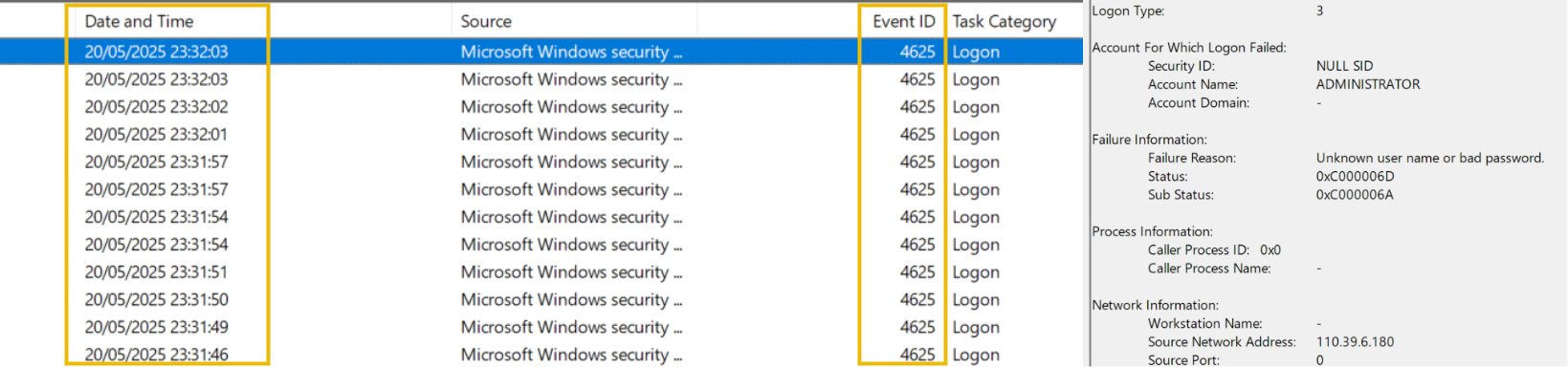
Interestingly, it is not that hard to spot an exposed RDP just from the Security logs. If you would assign a public IP to your server, disable the firewall, enable RDP, and wait around an hour - you would see the logs just like on the screenshot. Botnets around the world will immediately start brute forcing your server, generating hundreds of 4625 events that you won't miss! Note, however, that RDP can be breached without a brute force if threat actors knew the credentials in advance, but that is a topic for another room.
Detecting Backdoored Users
It's time to go back to the Security event logs! Every user creation event is logged as Security event ID 4720, which you explored in the Windows Logging for SOC room. Since threat actors can be very creative with naming the backdoored accounts, you should not rely just on detecting suspicious names like "hacker" but rather investigate:
Who created the account? Can the person confirm the account creation?
What is the source IP and time of the creator's login? Is it expected?
Which other suspicious events can you see in the creator's session?
Making Users Privileged
Next, a new user by itself won't give the attacker much, as the default user permissions do not allow remote (RDP) logins or grant administrative privileges on the machine. To overcome this, threat actors will add their backdoored account to one of the privileged groups, which is tracked by Security event ID 4732. The most commonly exploited groups are Administrators and Remote Desktop Users.
Resetting Passwords
Lastly, in more advanced cases, threat actors may simply reset the password of some old or unused account and use it instead of creating a new one. You can detect it with Security event ID 4724. In summary, below you can see how the described event IDs look like:

Detecting Services
Many critical Windows components like DNS client or Security Center are services. You can view services by launching services.msc or searching for "Services", but you need administrative privileges and the sc.exe command to create or modify one.
Threat actors can create their own malicious services that will run the specified program on startup, and they do it very often, as you can read in the MITRE examples. In logs, you can detect malicious services in three ways:
Detect the launch of the
sc.exe createcommand via Sysmon event ID 1Detect service creation via Security event ID 4697 or System event ID 7045
Detect suspicious processes with a
services.exeparent process

Detecting Tasks
Scheduled tasks are another Windows feature heavily used by both the OS and external apps (e.g. to check for updates or make a backup every hour). From GUI, you can manage tasks by launching taskschd.msc or searching for "Task Scheduler". From the command line, you can use the schtasks.exe command.
Unlike services, scheduled tasks are very easy to configure and hide, which is why they are the most common persistence method by threat actors, like in these APT28 and APT41 attacks. Similar to services, you can detect scheduled tasks in three ways:
Detect the launch of the
schtasks.exe /createcommand via Sysmon event ID 1Detect and analyze scheduled task creation events via Security event ID 4698
Detect suspicious processes with a
svchost.exe [...] -s Scheduleparent

Last updated