Sysmon
Sysmon is a free tool from the Microsoft Sysinternals suite that became a de facto standard for advanced monitoring in addition to the default system logs.
o, if I were to choose between enabling the basic, noisy 4688 event ID or spending some time installing Sysmon to receive more powerful and flexible logs, I would proceed with Sysmon, and you are encouraged to do the same! Once installed, Sysmon logs are found in Event Viewer under Applications & Services -> Microsoft -> Windows -> Sysmon -> Operational.

Sysmon Event ID 1 in Action
As you can see on the screenshot above, event ID 1 has a lot of different fields, the most important of which can be grouped as:
Process Info: Context of the launched process, including its PID, path (image), and command line
Parent Info: Context of the parent process, very useful to build a process tree or an attack chain
Binary Info: Process hash, signature, and PE metadata. You will need it for more advanced rooms
User Context: A user running the process and, most importantly, Logon ID - same as in the Security logs
Since almost any attack works on the endpoint level and requires at least some process to be launched to breach the system or exfiltrate the data from it, process monitoring is the most important log source for any SOC team. Use the following workbook to perform a basic analysis of any process launch:
Event Code
Purpose
Limitations
4688 (Security Log: Process Creation)
Log an event every time a new process is launched, including its command line and parent process details
Disabled by default, you need to enable it by following the official documentation
1 (Sysmon: Process Creation)
Replace 4688 event code and provide more advanced fields like process hash and its signature
Sysmon is an external tool not installed by default. Check out the Sysmon official page
Sysmon Event ID 1 in Action
As you can see on the screenshot above, event ID 1 has a lot of different fields, the most important of which can be grouped as:
Process Info: Context of the launched process, including its PID, path (image), and command line
Parent Info: Context of the parent process, very useful to build a process tree or an attack chain
Binary Info: Process hash, signature, and PE metadata. You will need it for more advanced rooms
User Context: A user running the process and, most importantly, Logon ID - same as in the Security logs
Since almost any attack works on the endpoint level and requires at least some process to be launched to breach the system or exfiltrate the data from it, process monitoring is the most important log source for any SOC team. Use the following workbook to perform a basic analysis of any process launch:
Analyse Process Launch (Expand Me)
Open Sysmon logs and filter for event ID 1
Review the fields from the process and binary info groups. The red flags are:
Image is in an uncommon directory like C:\Temp or C:\Users\Public
Process is suspiciously named like aa.exe or jqyvpqldou.exe
Process hash (MD5 or SHA256) matches as malware on VirusTotal
Review the fields from the parent process group. The red flags are:
Parent matches red flags from step 2 (suspicious name, path, or hash)
Parent is not expected (e.g. Notepad launching some CMD commands)
If still in doubt, go up the process tree until you are confident in your verdict:
Find the preceding event where ProcessId equals ParentProcessId in your event
Analyze it by following steps 2 and 3 (suspicious parent, name, path, or hash)
Finally, trace the attack chain by filtering all Security and Sysmon events with the same Logon ID
Event ID
Security Log Alternative
Event Purpose
11 / 13 (File Create / Registry Value Set)
4656 for file changes and 4657 for registry changes, both disabled by default
Detect files dropped by malware or its changes to the registry (e.g. for persistence)
3 / 22 (Network Connection / DNS Query)
No direct alternative, requires additional firewall and DNS configuration
Detect traffic from untrusted processes or to known malicious destinations
Structure of Sysmon Events

Take a look at the screenshot above - although every event ID has its own purpose, the fields highlighted in orange follow the same structure. Also, note that some critical fields, like Logon ID or parent process info, are missing. The logic here is that you use the ProcessId field to find the corresponding event ID 1 (Process Creation) and get the full context there.
Usage of Sysmon Events
Although process creation events provide enough context to detect common breach scenarios, additional logs can be vital to reconstruct the full attack chain and ensure nothing is missed. For example, you need network logs to identify where the data was exfiltrated to, and registry change logs to check which system configuration was modified by threat actors.
Detecting Malicious Download
It is relatively simple to hunt for malicious downloads if you know how the victim sees it. First, the user uses a web browser or desktop application to open a phishing attachment. In the simplest case, it would be a direct .exe malware download, but you are far more likely to see an archive attachment like .zip or .rar containing the malware. In this case, Sysmon can greatly help you detect every attack stage:
SysmonEvent Chain for Double-Extension Attachment

Notes on LNK Attachments
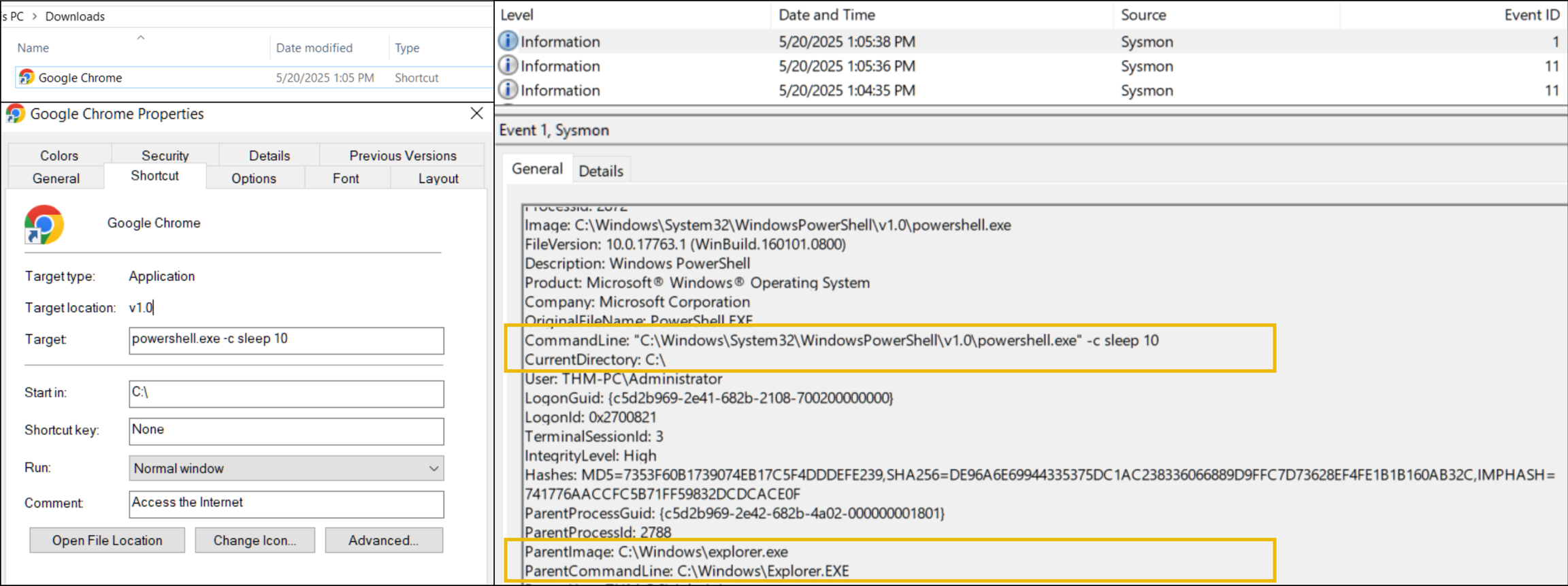
Unlike with binary attachments, LNK files have a very interesting and important capability - they leave little execution trace. Consider the case on the screenshot below, where a user downloaded LNK file that looks like a Google Chrome shortcut, but in fact runs some PowerShell payload.
After the user launches the shortcut - Windows Explorer reads the "Target" field of the LNK and makes it look like explorer.exe launches PowerShell directly. Still, you can identify if it was indeed LNK phishing or another attack vector by looking for the preceding file creation events - LNK files must have appeared somewhere in Downloads before:
Detecting an Infected USB
Although there are many advanced techniques on how to run the malware from USB automatically as soon as the flash drive is plugged in, the majority of cases occur just because the user launches malware themselves. For example:
Malware hides all legitimate files on USB and creates a malicious "RECOVERY.lnk" file
Malware creates a "Photos.exe" binary and sets its icon to look like a simple folder
Malware creates double-extension copies of all files, like "photo_2024_1_12.jpg.exe"
Interestingly, the detection of Initial Access via USB looks very similar to the phishing attachments. Since both methods rely on a user running malicious binary via a graphical interface (explorer.exe), you may have a hard time understanding how exactly the attack started. Still, in some cases, you may find evidence of execution from external drives like "E:\malware.exe":

Discovery via CMD
Discovery via the command line is the most common and easiest method available for threat actors. This is because it simply uses the existing commands like "whoami" or "ipconfig" that are available on all Windows machines by default; check out this article for a real-world attack example. Luckily for the defenders, most of the launched commands are logged as new processes, like on the process tree below:
Discovery Commands Coming From "invoice.pdf.exe"
Discovery via GUI
In cases where threat actors log in to the system interactively, like after the RDP breach, they are not limited to console commands (but they often use them anyway as a habit). With access to the graphical interface, nothing prevents attackers from using the same toolkit as you do: Apps & Programs, System Settings, Disk Management, or even Event Viewer. In this scenario, you won't see typical "whoami" commands but rather a process tree that looks like this:
Process Tree for GUI Discovery
Detecting Discovery
The first task to detect a potential Discovery is to find a Discovery command, or better, a sequence of commands run during a short period of time. You will see them as process creation events tracked by Sysmon event ID 1 or as new rows in the PowerShell history file. There are lots of Discovery commands, so be prepared to use the search engine if you are not sure what the command means.
Next, it is important to find out where the commands are coming from. Commands like "ipconfig" are often used by IT departments and legitimate tools, and you don't want to create panic just because your coworker checked their IP. For this room, you can build the process tree using Sysmon logs: filter for process creation events and correlate ProcessId and ParentProcessId fields, like in the example below:

Detecting Collection
Same as with Discovery, threat actors can use both command-line and graphical interface options to review sensitive files. However, in Collection, threat actors don't just check a system configuration but rather look for specific files and folders shown in the previous task. Thus, you can detect access to the files by tracking commands like:
notepad.exe C:\Users\<user>\Desktop\finances-2025.csv
Threat actors used Notepad to check content of the interesting file
CMD: type debug-logs.txt | findstr password > C:\Temp\passwords.txt
Threat actors searched for the "password" keyword in a specific file
PowerShell: Get-ChildItem C:\Users\<user> -Recurse -Filter *.pdf
Threat actors searched for PDF files in the user's home folder
PowerShell: copy C:\Users\<user>\AppData\Roaming\Signal С:\Temp\
Threat actors copied Signal chat history to the Temp directory
PowerShell: Compress-Archive С:\Temp\ С:\Temp\stolen_data.zip
Threat actors archived the stolen data, preparing for exfiltration
7za.exe a -tzip C:\Temp\stolen_data.zip С:\\Temp\\*.*
Alternatively, threat actors can use the existing archiving software like 7-Zip
Collection Examples
During manual collection or when using scripts, you will see basic commands and processes covered in the previous task. In this incident, threat actors simply used Notepad and Wordpad to open files of interest and then used 7-Zip to archive all files at once. As you may see from the screenshot, the actions were easily detected with Sysmon event ID 1:
Manual collection of DOCX and TXT documents (thedfirreport.com)

Data Stealers
Collection performed by human threat actors is typical for breaches of big networks, where the attacker knows their target and spends much time looking for data to steal. However, attacks targeting simple personal workstations rarely involve human attacker and data collection is performed by a data stealer - specialized malware to automate collection and exfiltration.
For example, Gremlin data stealer, a single malicious file, steals VPN profiles, cryptocurrency wallets, web browser sessions, Steam, Discord, and Telegram data, and even takes screenshots of the victim's host. You can read the details in this Unit42 blog post. Note that data stealers rarely use CMD or PowerShell commands but rely on their own code, making it harder to understand which exact data was accessed or stolen:
Data stealer function stealing Telegram sessions (unit42.paloaltonetworks.com)

Detecting Tool Transfer
Since a transfer requires a network connection, your best option would be to track a network connection or a DNS request from the suspicious process. Note, however, that threat actors often try to avoid detection by downloading the tools from legitimate services like GitHub, so make sure to analyze which process is making the connection, the destination domain, and the file being downloaded. The screenshot below shows a complete event chain:

Run Keys and Startup
Services and scheduled tasks are typically run on system boot and require administrative privileges to configure. However, what if a program has to run only when a specific user logs in? For such cases, Windows provides a few per-user persistence methods that are actively used by both legitimate tools and malware:
Persistence Method
Attack Example
Event ID Logging
Add malware to Startup Folder (Runs upon user login)
copy C:\malware.exe
"%AppData%\Microsoft\Windows\Start Menu\Programs\Startup\malware.exe"
New startup item: Sysmon Event ID 11
Add malware to "Run" keys (Runs upon user login)
reg add "HKCU\Software\Microsoft\Windows\CurrentVersion\Run"
/v BadKey /t REG_SZ /d "C:\malware.exe"
New registry value: Sysmon Event ID 13
Detecting Startup
The startup folder was meant to be an easy way for inexperienced users to configure programs to run on login. You simply open the startup folder, move your program or program shortcut there, and see how it automatically starts upon your future logins. You can access your startup folder via the path below:
The startup folder is not a common choice for legitimate programs, so usually, the folder is empty. Still, threat actors often put their malware there (Lumma Stealer example), and you can detect it by monitoring file creation events (Sysmon Event ID 11) inside the Startup Folder. Also, note that the programs launched via startup will have an explorer.exe parent, so it may be hard to differentiate them from legitimate user activity or attacks you learned in Windows Threat Detection 1:

Detecting Run Keys
Run key persistence is very similar to the startup folder; they even share a single MITRE technique! The only major difference is how the entries are added there. Instead of just copying the program to the startup folder, you need to create a new value in the "Run" Windows registry and put the path to your program there:
To view the "Run" entries, you can launch the regedit.exe or search for "Registry Editor" and go to the path shown above. To detect the malicious entry from logs, you can monitor registry change events (Sysmon Event ID 13) affecting the Run keys:

Last updated